What Is Google Cloud Console?
Google Cloud Console is a web-based interface for managing Google Cloud resources and services. Its central dashboard enables users to create and manage projects, deploy and monitor applications, oversee billing, configure access, and work with Google Cloud services from one place.
Also known as the GCP Console, it provides a graphical way to interact with cloud resources through a web browser. Instead of entering commands for every task, users can navigate menus, select services, review resource information, and configure settings through the interface.
In simple terms, the Google Cloud Console, also referred to as Cloud Console, is Google’s web-based interface for accessing and managing Google Cloud resources and services.
Key Features of GCP Console
Centralized Cloud Management
No more expensive hardware or maintenance fees. You pay as you go, and resources are billed according to flexible, on-demand pricing.
The GCP cloud console brings access to multiple Google Cloud services into a central interface. Users can select a project and navigate to the services they need without managing each service through a separate application.
For example, a developer working on a web application may need a virtual machine, storage, and monitoring tools. The Console provides a place to access and manage these resources, although the services themselves may have separate configurations and charges.
Cloud costs depends on resources used, their configuration, and applicable pricing. Using the Console does not make the underlying services free.
Comprehensive Resource Monitoring
GCP Console allows you to monitor accurate information about the health and performance of resources like CPU usage, memory, and network traffic. This visibility is particularly useful for applications that depend on cloud infrastructure to deliver reliable, real-time customer interactions.
Google Cloud monitoring tools can help teams review resource metrics, investigate performance issues, and configure alerts. The available metrics depend on the service being monitored and its configuration.
For instance, if a virtual machine is experiencing high CPU utilization, a team can review its available metrics and investigate whether the workload needs attention. Monitoring provides evidence for troubleshooting, but it does not automatically resolve every performance issue.
Efficient Project Organization
GCP Console allows you to easily create and manage projects by facilitating resource allocation and permissions among different departments within your organization.
Projects help organize resources for different applications, environments, or teams. A business might maintain separate projects for development and production workloads, depending on its organizational and access-control requirements.
When users create a project, they should also consider who needs access and which permissions are appropriate. Project organization and access management work together to help teams manage resources responsibly.
Powerful Deployment Tools
GCP Console provides various deployment tools like Cloud Shell, which offers a command-line interface in the browser, and Deployment Manager, which automates the creation and management of Google Cloud Resources.
Cloud Shell gives users access to a browser-based command-line environment for supported Google Cloud management tasks. This can be useful when users want to run commands without setting up a local command-line environment.
The Console also provides service-specific deployment and configuration interfaces. The tools available depend on the Google Cloud service and its current support status, so teams should verify that a particular deployment tool is still supported before choosing it for a new implementation.
Detailed Billing and Cost Management
Monitor your cloud spending with detailed billing reports and set budgets to avoid unexpected costs, ensuring maximum value from your cloud investments.
The Console provides access to billing information and cost-management options, subject to the user’s permissions and billing configuration. Teams can review costs, examine spending patterns, and configure budgets or budget alerts.
A budget alert is a notification mechanism, not necessarily a spending limit. Reaching a budget threshold does not automatically stop all resources or prevent further charges. Businesses should review their billing configuration and use appropriate controls to manage costs.
Robust Access and Identity Management
Identity and Access Management (IAM) securely manages users’ permissions and roles, ensuring that resources are accessible only to authorized users.
IAM helps administrators control who can access Google Cloud resources and what actions they can perform. Permissions are granted through roles, with access configured at relevant levels, such as an organization, folder, project, or supported individual resource.
For example, a team member who needs to view project information may not need permission to change infrastructure settings. Assigning access according to job responsibilities helps reduce unnecessary privileges. Actual access depends on the permissions granted and the resource involved.
Integrated Development Environment
From Google Cloud Console, developers can access and work with services such as Cloud Shell, Cloud Build, Cloud Functions, and Cloud Code integrations. Together, these tools support application development, deployment, and the connection of cloud services with enterprise systems and customer experience platforms.
These services have different purposes. Cloud Build supports building workflows, while serverless services can run code without requiring users to manage the underlying servers in the same way as a traditional virtual machine. The exact development process depends on the application architecture and selected services.
Google Cloud Console vs. Google Cloud CLI
The Google Cloud Console and the Google Cloud CLI provide different ways to manage cloud resources.
- Console: Uses a graphical interface for navigating services, viewing settings, and performing supported management tasks.
- Google Cloud CLI: Uses commands to manage resources and is useful for scripting, automation, and repeatable operations.
Some users search for the gcloud console when looking for ways to manage Google Cloud. It is important to distinguish the browser-based Console from the gcloud command-line tool. They are related management options, but they are not the same interface.
Benefits of Using the GCP Console
Simplified Cloud Management
GCP Console’s user-friendly interface makes cloud resources easier to manage for users with limited technical expertise.
Users can explore services, review project information, and configure supported resources through menus and forms. However, some tasks still require technical knowledge, especially when configuring networking, security, deployments, or complex applications.
Better Visibility
Better visibility, real-time monitoring, and detailed reporting are offered across your cloud environment, which enables users to make informed decisions and solve problems quickly. For organizations running AI-powered customer service workflows, this visibility can help maintain the reliability of cloud services and integrations supporting platforms such as Tryvium.
Monitoring and billing information can help teams investigate issues, understand resource usage, and make more informed operational decisions. The available information varies by service, and teams may need to configure additional monitoring or reporting for their specific requirements.
Improved Collaboration
Organize resources into projects and set permissions using IAM. GCP Console provides the capability for collaboration across teams without compromising security.
For example, development and operations teams may need access to the same project but perform different tasks. Administrators can use IAM to grant appropriate roles rather than giving every user identical permissions.
Effective collaboration still requires reviewing access regularly and following the organization’s security policies.
Cost Control
Detailed billing reports help you manage budgets and optimize your cloud spending, ensuring maximum value from your cloud investments.
Teams can review spending and investigate which resources contribute to costs. They can then assess whether resources are configured appropriately for their workloads.
Cost management requires ongoing attention: monitoring a bill alone does not guarantee lower spending. Resource configuration, usage patterns, and pricing are important factors.
Streamlined Development
GCP Console integrates all the tools and services to make development smoother, easier, and more productive at every step from writing code to deploying applications. When combined with an AI-powered contact center platform such as Tryvium, these capabilities can help organizations connect cloud applications and services with customer-facing workflows and enterprise systems.
Getting Started with GCP Console
Sign Up for Google Cloud
Trial eligibility, credits, free-tier conditions, and billing requirements can change. Check Google’s official pricing and free-trial information before creating resources, and review billing settings to understand potential charges.
Navigate the Dashboard
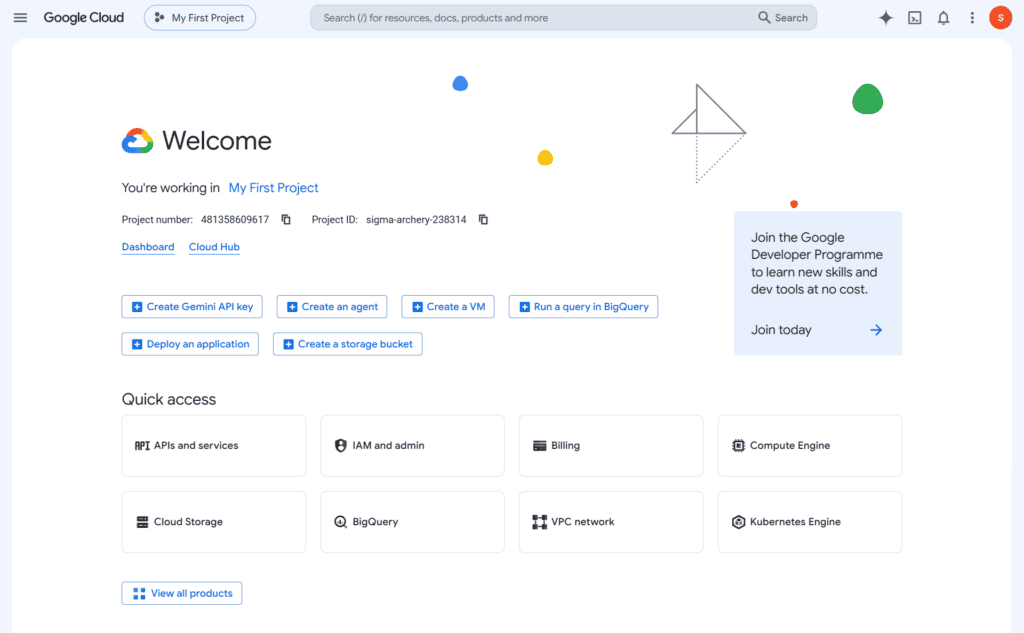
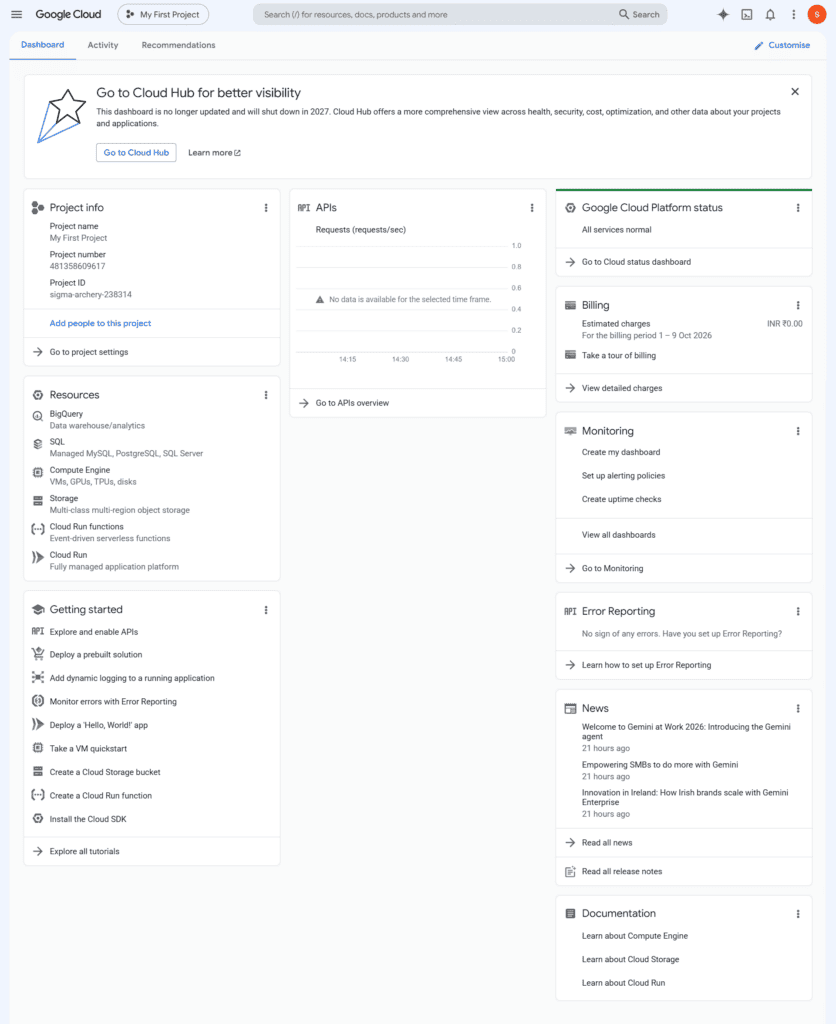
After logging in, you will be landed in the GCP Console dashboard view. Explore the navigation menu, project selector, and resource overview from the dashboard.
The dashboard helps users navigate services and projects. The options visible to each user can vary according to their permissions, account setup, and selected project.
Create a Project
Organize resources and control permissions by creating projects for different applications or teams.
Choose a project structure that fits your organization’s needs. Before deploying resources, confirm the relevant billing setup and permissions. Project creation and resource deployment are separate steps, and not every resource is automatically available just because a project exists.
Deploy Resources
Deploy resources like virtual machines, storage buckets, or databases using the GCP Console, including Cloud Shell and Deployment Manager.
The precise steps depend on the service being deployed. A virtual machine, a storage bucket, and a database each have different configuration requirements. Review the service’s settings, access controls, location options, and expected costs before proceeding.
Monitor and Optimize Performance
Monitor resources performance and health continuously with GCP Console’s built-in monitoring facilities to fine-tune your setup for optimal efficiency. For customer-facing AI environments, monitoring is important for maintaining reliable integrations, applications, and cloud services that support AI-driven customer interactions.
Start by identifying the metrics and alerts that matter to your workload. Review resource usage, investigate unexpected changes, and assess whether the configuration remains suitable as application needs to evolve.
Conclusion
The GCP Console is a powerful tool that efficiently manages all Google Cloud resources and services, offering a user-friendly interface, robust monitoring capabilities, cost control, and streamlining development procedures.
Whether you are looking to improve collaboration, optimize cloud spending, modernize customer service operations, and manage the cloud infrastructure more effectively, GCP Console can serve as an important part of the technology environment supporting AI-powered customer experiences. With solutions such as Tryvium for GCP, organizations can extend this environment to orchestrate AI agents, customer interactions, business workflows, and enterprise systems.
The key is to understand the role of each component. Google Cloud provides the underlying cloud services, the Console provides a graphical way to manage them, and the Google Cloud CLI offers a command-based alternative for supported tasks. Platforms such as Tryvium can complement this environment when organizations need to coordinate AI agents, enterprise applications, workflows, and human expertise.
Frequently Asked Questions (FAQs)

 Cookie Consent